

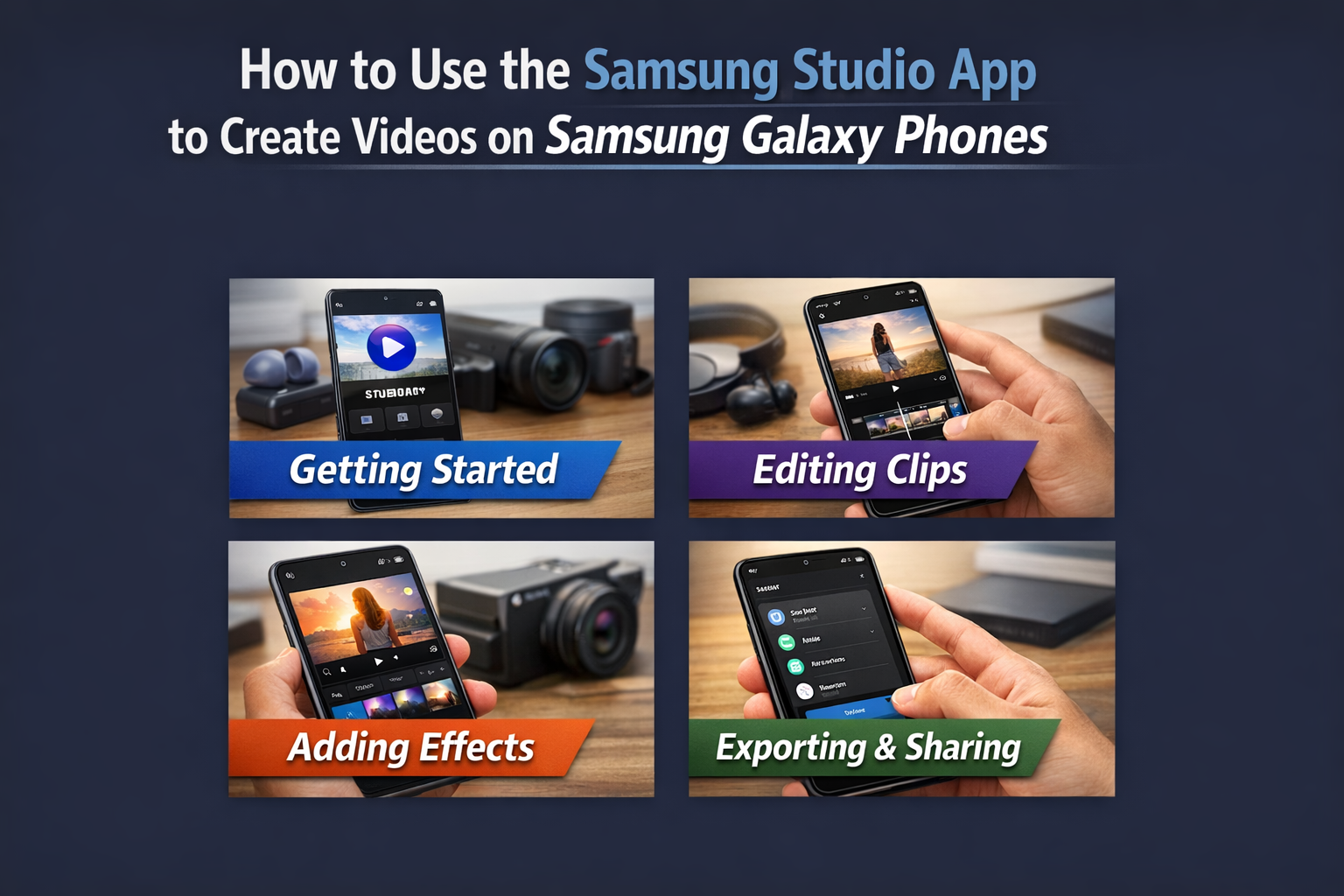

How to Use Samsung Studio to Create Videos on Samsung Galaxy Phones
The Samsung Studio app makes it easy to create videos on Samsung Galaxy phones, allowing users to add text, stickers, and make various edits without needing a third-party video editing app. This app is available on Galaxy devices with the One UI 6 update. If your phone is running this version, Samsung Studio will be integrated by default within the Gallery app.
Here’s how to access and use Samsung Studio on Samsung Galaxy devices:
First: How to Access Samsung Studio on Galaxy Phones
You can access Samsung Studio by following these steps:
- Open the Gallery app.
- Tap the three-dot menu at the bottom.
- Select “Go to Studio.”
Second: How to Use Samsung Studio
Once you open Studio from the Gallery app, you can start using it as follows:
- Tap “Start new project” at the bottom.
- Select the files you want to include in your video. Once uploaded, they will appear on the timeline.
- Above the timeline, you’ll see a music icon that allows you to add audio to your video.
- Tap it, choose a track from the available options, then tap “Done” at the top.
- Below the timeline, you’ll also find options to add text and stickers. To add text:
- Tap the “T” icon at the bottom-left.
- Enter the text you want to display.
- Tap the “T” icon again to adjust text effects.
- Tap the red circle to change text color.
- Tap the “A” icon to change the font.
- After editing, tap anywhere around the text and use your fingers to resize or reposition it.
- To add stickers, tap the sticker icon at the bottom, then scroll left or right to browse available stickers and emojis.
How to Add Transitions in Samsung Studio
When switching from one clip to another, you can apply transition effects by following these steps:
- On the timeline, tap the marker where one clip ends and another begins.
- Choose the transition effect you want.
- If you select “All”, the same transition will be applied across all clips in the video.
Additional Editing Options
At the bottom of the timeline, you’ll find more tools that allow you to adjust:
- Video speed
- Audio levels
- Brightness and contrast
- And other enhancements
Finalizing Your Video
Once you’ve completed your edits:
- Tap “Done” at the top.
- To rename the video, tap the three-dot menu in the top-right corner, then select “Rename.”
- Finally, save the video to your phone.